
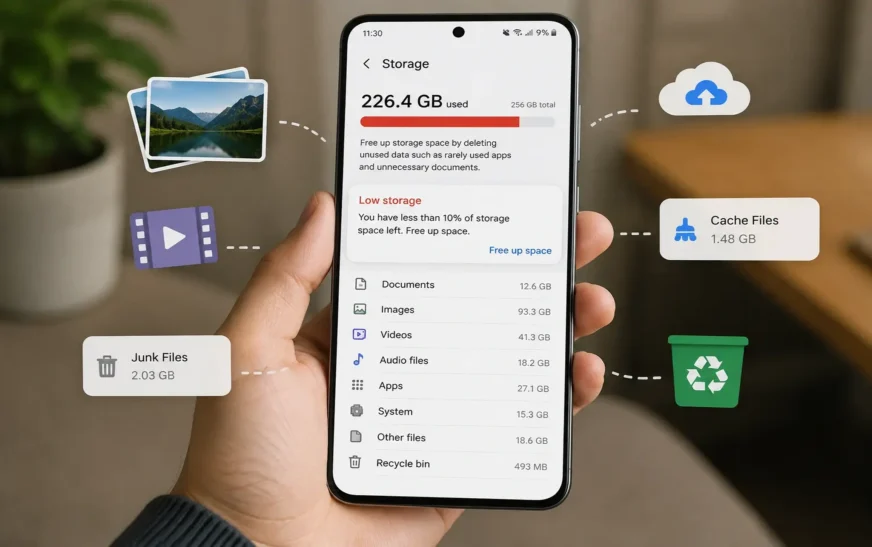
You’re not the only Android user getting continuous low storage warnings on your phone. People want to know how to free up storage on Android without deleting apps. Since it’s not always an option to delete vital apps. Thankfully, Android smartphones include a number of built-in tools and storage management capabilities that may help you reclaim space in no time.
We tested these storage cleanup methods on multiple Android devices, including Samsung Galaxy and Xiaomi phones, to ensure they work safely without deleting important apps or personal data.
From clearing cache files to removing duplicate media and using cloud backups, there are many smart ways to keep your phone running smoothly without losing your favorite apps.
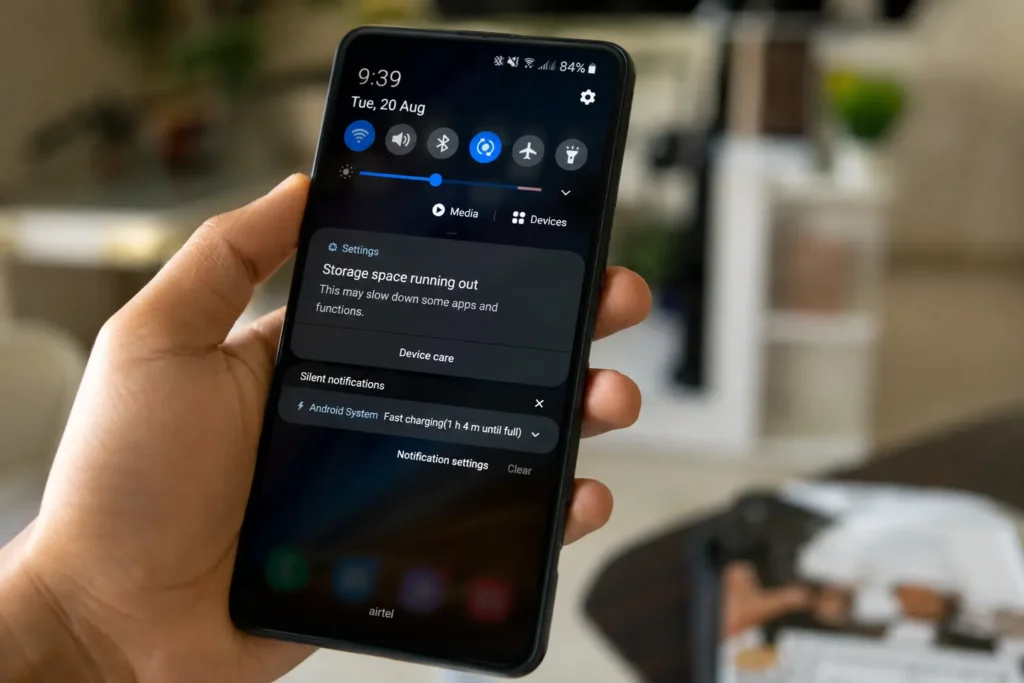
Why Android Storage Gets Full Quickly
Modern Android smartphones store much more than just apps. Every day your device collects:
- Temporary files
- Cached images
- App data
- Downloads
- Screenshots
- Social media media files
- Offline videos
- Automatic backups
Apps like TikTok, Instagram, Facebook, and WhatsApp continuously save data in the background. Over time, these hidden files become one of the main reasons users see the dreaded Android internal storage full message.
Even phones with 128GB or 256GB of storage can eventually run low on space if files are not managed regularly.
How to Clear Storage on Android
One of the easiest ways to recover space is by checking what is using the most storage on your device.
Go to:
Settings → Storage
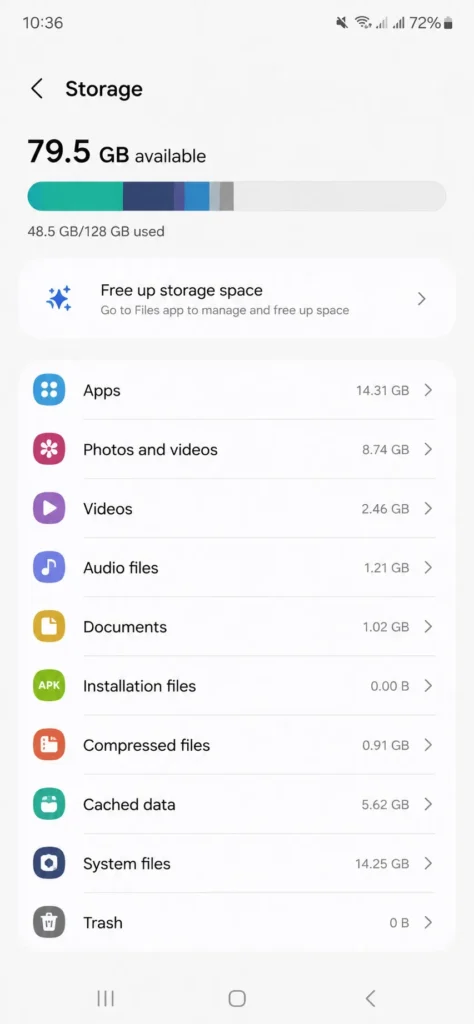
Settings names may vary slightly between Samsung, Xiaomi, OnePlus, Google Pixel and Motorola devices, but the overall process is usually very similar.
Here you can see categories such as:
- Apps
- Photos and videos
- Downloads
- Cached data
- Documents
- System files
This gives you a clearer idea of what is taking up storage on your phone. Many Android devices also come with an Android storage manager feature that recommends files you can safely clean up.
Users dealing with an Android internal storage full warning should start here before uninstalling any applications.
Some Android brands also provide color-coded storage charts, making it easier to understand which files take up the most space.
Clear Cache Android Files
Cache files are temporary files stored by apps to improve performance. Over time, these files can take up several gigabytes of space.
To clear cache Android files:
- Open Settings
- Tap Apps
- Select an app
- Tap Storage
- Choose Clear Cache
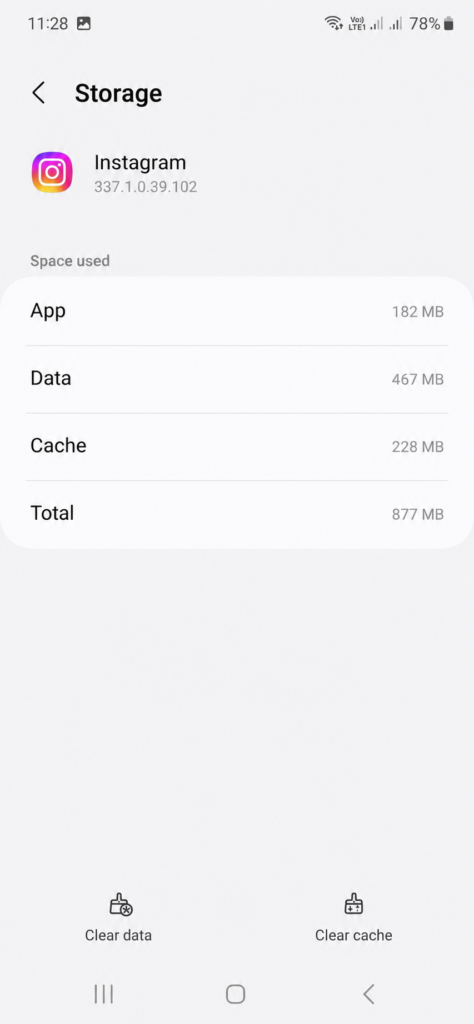
Apps like:
- Chrome
- TikTok
- YouTube
- Spotify
Often store large cache files.
For example, social media apps may cache videos and images so they load faster later. While this improves speed, it can silently consume storage space in the background.
Clearing cache does not delete the app or your personal data, making it one of the safest ways to free up space on an Android phone.
You can also clear browser cache regularly if you browse heavily on Chrome or Samsung Internet.
Avoid deleting system files manually unless you fully understand their purpose, as removing important Android files may cause app crashes or system stability issues.
Use Android Storage Manager
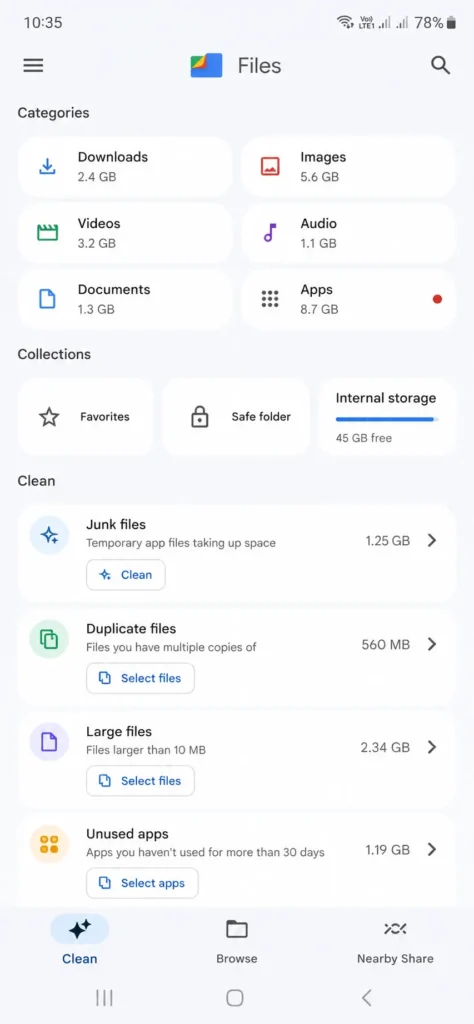
Most modern Android devices include a built-in cleanup feature called Android storage manager or Device Care.
Google and Android manufacturers recommend using these built-in storage tools before installing third-party cleaning apps.
Google also provides guidance through the Android Help Center for managing device storage safely.
This tool can:
- Remove junk files
- Delete temporary files
- Clear duplicate items
- Suggest unused files
- Optimize storage automatically
To access it:
Settings → Storage → Storage Manager
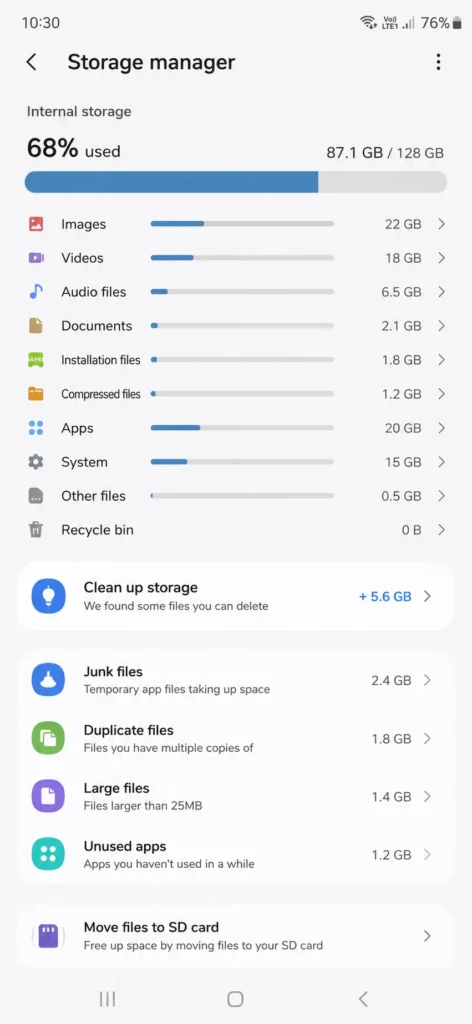
Some phone brands may place it under:
- Device Care
- Battery and Device Care
- Phone Manager
Using this feature regularly can help prevent storage problems before they become serious.
Some Android devices also allow automatic cleanup recommendations every few weeks, which is useful for users who rarely check storage manually.
Move Photos and Videos to Cloud Storage
Photos and videos are usually the biggest storage consumers on Android devices.
Instead of deleting them, upload them to:
- Google Photos
- Google Drive
- OneDrive
- Dropbox
After backing up your media, you can remove local copies from your phone while still keeping access online.
Google Photos also includes a built-in “Free up space” option that automatically removes files already backed up to the cloud.
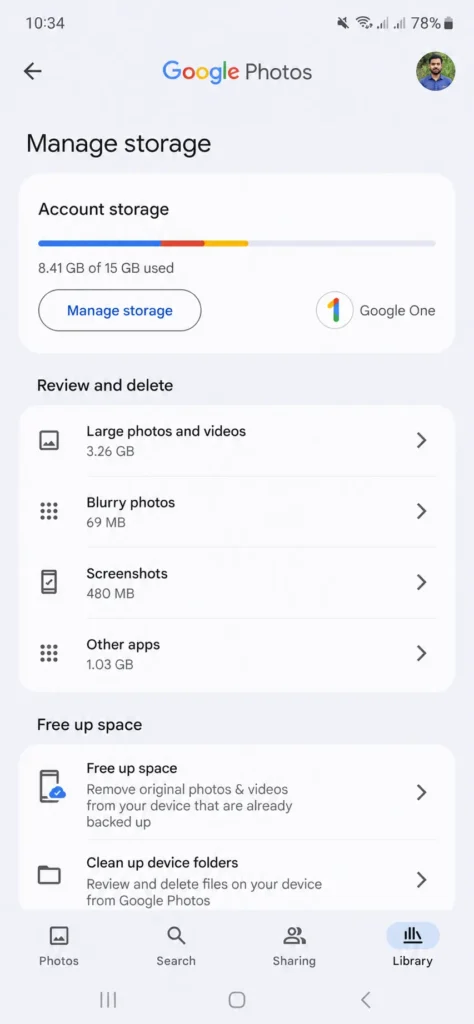
For most Android users, moving photos and videos to cloud storage is one of the easiest ways to recover space without uninstalling apps or deleting important files.
Cloud storage is especially useful for people who regularly record videos, download memes or save large image collections.
Delete Old Downloads and Duplicate Files
The Downloads folder often contains:
- PDFs
- APK files
- Old documents
- Duplicate images
- Screenshots
- ZIP files
Many users forget these files exist.
Use the Files by Google app or your phone’s file manager to sort files by size and delete unnecessary items. Duplicate cleaning tools can also help recover additional storage space.
Many Android users ignore the Downloads folder, but cleaning it regularly can be an easy Android storage full fix that quickly frees up extra space.
Checking your Downloads folder once every month can help keep your phone clean and organized.
Delete WhatsApp and Telegram Media
Messaging apps are another major cause of storage problems.
Apps like:
- Telegram
- Messenger
Automatically download:
- Photos
- Videos
- Voice notes
- Documents
- GIFs
Many users have several gigabytes of hidden messaging media stored on their phones without realizing it.
To reduce this:
- Delete large forwarded videos
- Remove old voice notes
- Disable automatic downloads
- Clear unnecessary chat media
In WhatsApp, go to:
Settings → Storage and Data → Manage Storage
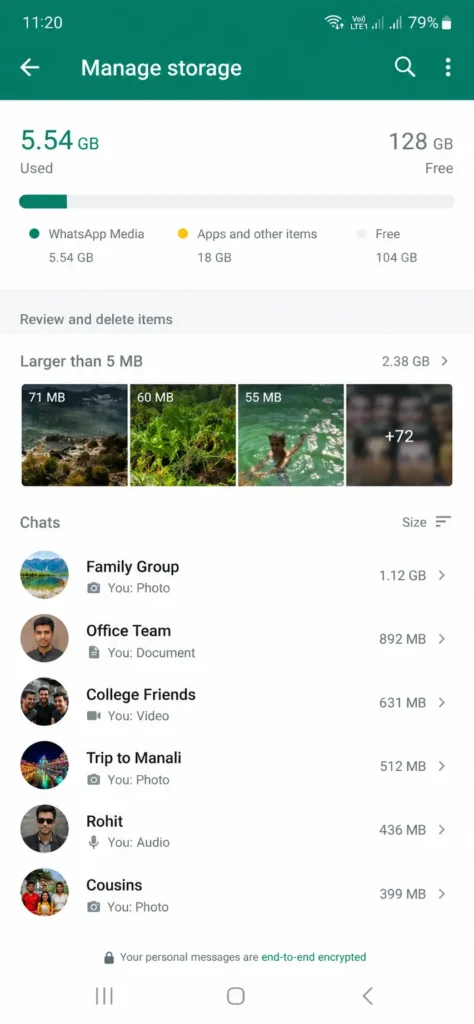
Here, you can quickly see which chats and media files are taking up the most storage on your phone.
Best Apps to Free Up Storage on Android
Several trusted apps can help manage storage efficiently.
A lightweight tool that removes:
- Junk files
- Duplicate photos
- Temporary app data
CCleaner
Helps analyze storage usage and clear unnecessary files.
SD Maid
Useful for advanced Android users who want deeper storage cleaning options.
AVG Cleaner
Provides automated cleanup suggestions and duplicate file scanning.
When choosing the best apps to free up storage on Android, avoid apps that promise unrealistic performance boosts or excessive RAM cleaning.
Simple and trusted storage cleaners are usually the safest option.
Remove Offline Content You No Longer Need
Streaming apps often download content automatically for offline viewing.
Check apps like:
- Netflix
- Spotify
- YouTube Premium
- Amazon Prime Video
And remove:
- Downloaded movies
- Offline playlists
- Saved episodes
These files can silently consume huge amounts of storage.
Music streaming apps can also store high-quality audio files that quickly fill internal memory over time.
Use Lite Versions of Apps
Some popular apps offer lightweight “Lite” versions that use:
- Less storage
- Less cache
- Less background data
Examples include:
- Facebook Lite
- Messenger Lite
- TikTok Lite
These apps are especially useful for older Android devices with limited internal storage.
Switching to Lite apps can help users free up space Android phone storage without losing access to essential services.
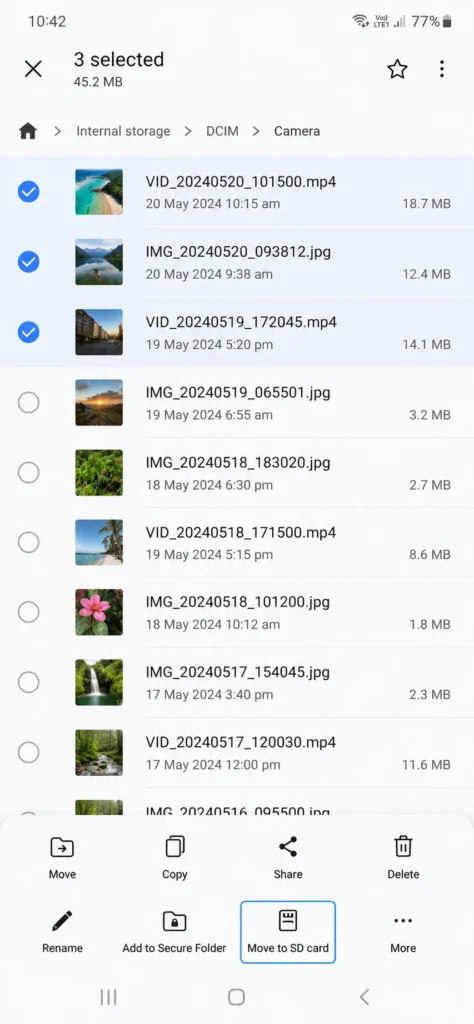
Transfer Files to an SD Card
If your Android phone supports microSD cards, move large files such as:
- Videos
- Photos
- Music
- Documents
To external storage:
Some Android devices also allow certain apps to store data directly on the SD card, which can significantly reduce internal storage usage.
SD cards are one of the easiest long-term solutions for people who store large media libraries on their phones.
Check Hidden Trash and Recycle Bin Folders
Many Android apps keep deleted files inside a recycle bin for up to 30 days.
Check:
- Gallery trash
- Google Photos bin
- File manager recycle folders
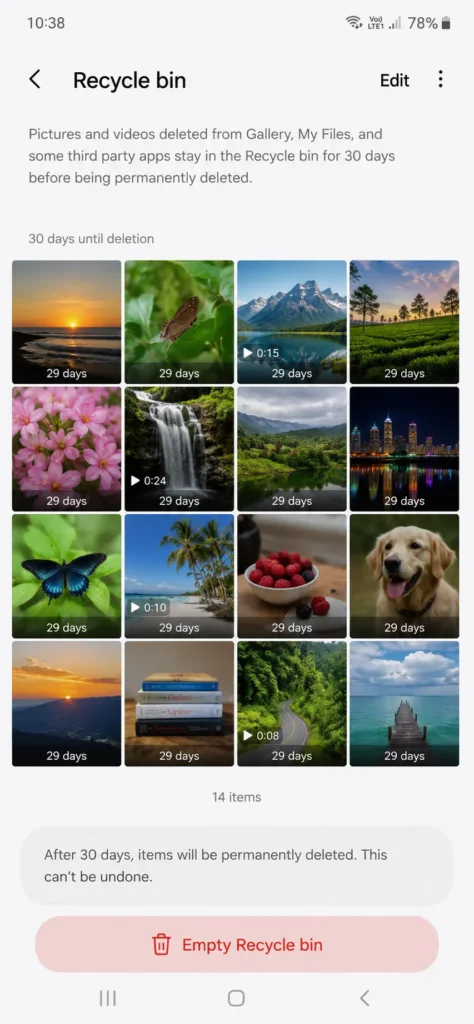
These hidden folders can continue occupying storage even after files appear deleted.
Emptying recycle bins regularly can recover several gigabytes of storage instantly.
Turn On Automatic Photo Optimization
Google Photos includes a feature that compresses images slightly to save storage space while maintaining good quality.
You can enable:
- Storage Saver mode
- Automatic backup cleanup
This feature makes it easier to keep your phone storage under control without constantly cleaning files manually every week.
Automatic optimization is especially helpful for people who take large numbers of photos daily.
Frequently Asked Questions
Can I free up Android storage without deleting apps?
Yes. You may clear cache, erase duplicate media, migrate files to cloud storage and clean temporary files without uninstalling programs.
What takes up the most space on Android?
Photos, videos, app cache, downloads and media from chat apps are frequently the largest storage hogs.
Is clearing cache safe on Android?
Yes. Clearing cache will just eliminate temporary files and will not erase your sensitive info.
What is the best Android storage full fix?
Best methods include cleaning cache using Android storage manager, eliminating duplicate files and backup photographs to cloud storage.