
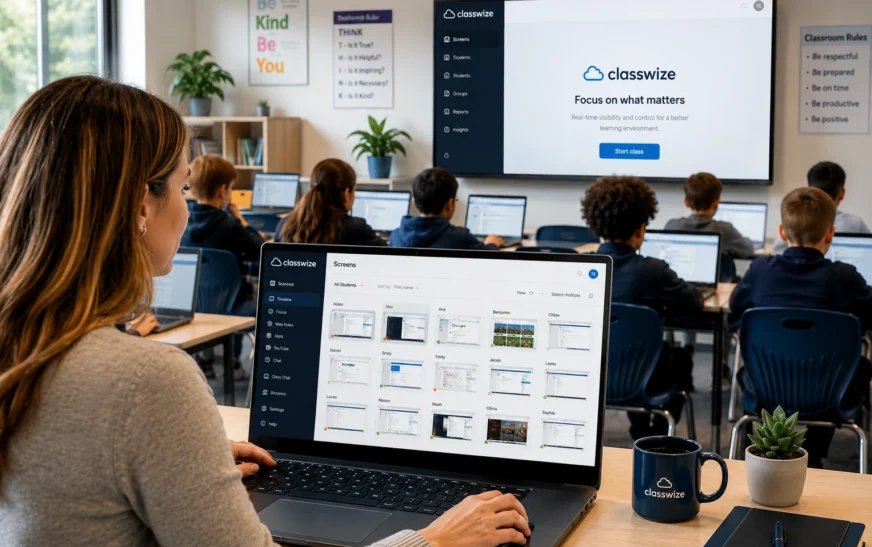
Managing a classroom full of pupils using smartphones is one of the most difficult issues teachers face today. Students are readily distracted by social media, gaming, and off-topic websites and it is impossible to monitor all screens at once. That is exactly what Classwize was designed to fix.
This tutorial will explain all you need to know about Classwize, including what it is, how it works, its important features, how to get started and whether it is the ideal solution for your school.
What Is Classwize?
Classwize is a cloud-based classroom management tool designed by Linewize Connect — a company specialising in digital safety and wellbeing for schools. It gives teachers real-time visibility and control over students’ online activities during class, all from a single easy-to-use dashboard.
The platform works across Chrome and Windows devices, making it compatible with most school-issued Chromebooks and laptops. It does not currently support phones or iPads.
Think of it as a control centre for your classroom. While students work on their devices, you can see exactly what every individual student is doing, block distracting websites, pause internet access with a single click and even send messages — all without leaving your desk.
Why Classroom Management Software Matters
Digital learning has become a standard part of modern education, with schools increasingly relying on Chromebooks, laptops and online learning platforms. While these devices provide access to valuable educational resources, they can also create distractions through social media, games, messaging apps, and unrelated websites.
Classroom management software helps teachers maintain focus during lessons by providing visibility into student activity and tools to guide students back on task. Solutions like Classwize are designed to support productive digital learning environments while reducing the need for constant classroom monitoring.
How Does Classwize Work?
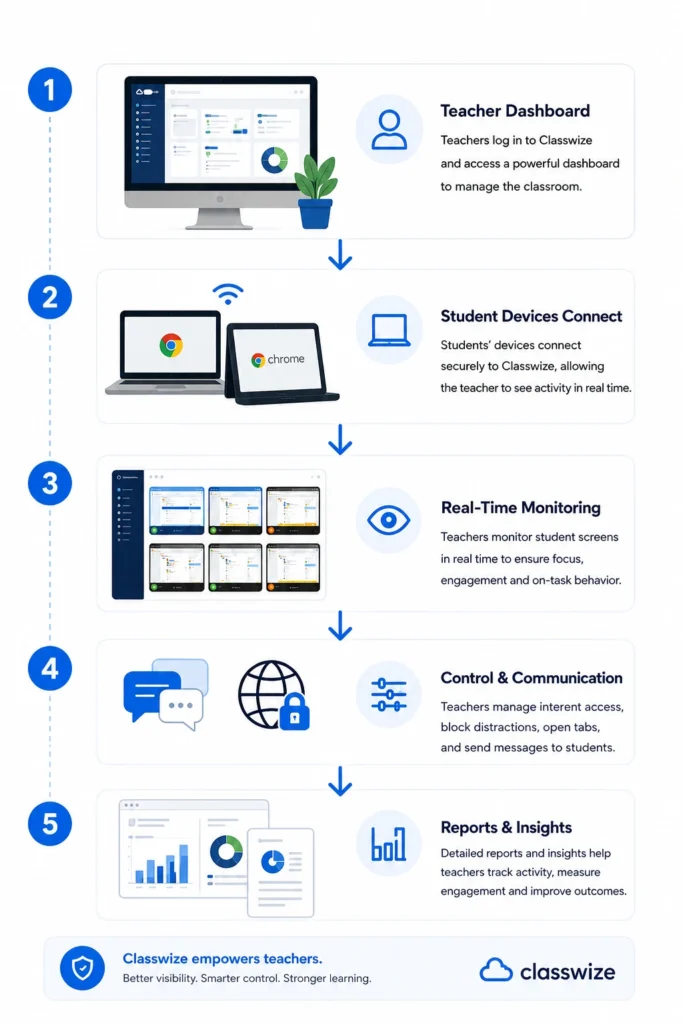
Classwize works as a browser extension installed on student devices. Once active, it connects student devices to the teacher’s dashboard during school hours.
Here’s the basic flow:
- The teacher logs in to the Classwize dashboard and starts a class session
- Student devices connect automatically based on their school login
- The teacher can see all connected devices on one screen — live
- From the dashboard, the teacher can monitor, control and communicate with individual students or the whole class
All activity is recorded during the active class session only. Screenshots and browsing history are available in the reporting tools, giving teachers insight into students’ online activities throughout the lesson.
Classwize Features and Tools Explained
Real-Time Screen Monitoring
The Teacher Dashboard allows you to see every student’s screen throughout class. Teachers can monitor which websites are open, which apps are operating and whether individual pupils are on or off target in real time. If a student opens an improper or off-topic tab, the teacher can promptly close it from the dashboard.
Internet Access Control
Teachers can halt internet access for an entire class, a group or individual pupils with a simple click. This is very effective when teaching anything in front of the class and requiring everyone’s full attention. Once students are ready to begin working online, internet access is quickly restored.
Focus Sessions
Focus sessions allow teachers to pre-select specific websites and apps for students to use during a lesson. Everything else is obstructed. This keeps students focused on lesson-related content and eliminates the temptation to browse social media or gaming websites during school hours.
Website and App Filtering
Teachers can restrict or unblock specific websites before or during class, without contacting the IT department. This allows teachers direct control over the digital learning environment, as opposed to needing to make IT requests every time a website needs to be updated.
Student Messaging
Classwize has a built-in messaging function that allows professors to communicate with individual students or the entire class without interrupting the session. Instead of confronting a student in front of their friends, a teacher might send a discreet private message right to their screen.
YouTube Management
YouTube is a useful instructional resource, but it also contains distracting recommendations, comments and advertisements. Classwize’s Class Ready YouTube feature allows teachers to transmit selected YouTube videos straight to each student’s device while screening out irrelevant content, ensuring that students only view what the teacher wants.
Reporting and Student History
Classwize generates extensive reports on students’ online activity in class. Teachers may see screenshot histories, surfing timelines and off-task activity trends. These reports are useful for identifying students who may require additional assistance and for informing parent-teacher conferences.
Breakout Sessions
Teachers can organize distinct breakout sessions within a class, which is perfect for group projects, test preparation or study halls. Each breakout group can have separate internet access settings, allowing one group to conduct free research while another is restricted to a limited number of websites.
Benefits of Using Classwize
Schools choose Classwize because it helps create a more focused, productive and secure digital learning environment. By giving teachers greater visibility into student activity, the platform helps reduce distractions and supports more effective classroom management.
- Reducing digital distractions during lessons
- Giving teachers real-time visibility into student activity
- Improving classroom engagement and participation
- Supporting responsible device use
- Reducing reliance on IT teams for website access changes
- Providing detailed reporting and activity insights
- Helping schools maintain digital safety standards
As schools continue adopting educational technology, many teachers are also exploring AI productivity tools to streamline lesson planning, communication, and administrative tasks. Combined with these modern solutions, Classwize helps educators spend less time managing technology and more time focused on teaching and student success.
Classwize and Linewize Connect
Classwize is part of the broader Linewize Connect ecosystem. While Classwize focuses on in-classroom management during school hours, Linewize Connect extends protection across the entire school network — covering filtering, reporting and digital wellbeing for the whole school community, not just individual classrooms.
Schools that use both tools get end-to-end coverage, Linewize handles network-level internet access and filtering across the school, while Classwize gives individual teachers granular control inside their own classrooms.
Classwize vs Other Classroom Management Tools
Classwize competes with several popular classroom management platforms used in schools worldwide.
| Feature | Classwize | GoGuardian | Securly Classroom | LanSchool |
|---|---|---|---|---|
| Real-Time Screen Monitoring | Yes | Yes | Yes | Yes |
| Website Filtering | Yes | Yes | Yes | Yes |
| Focus Sessions | Yes | Limited | Yes | Limited |
| Student Messaging | Yes | Yes | Yes | No |
| Chromebook Support | Yes | Yes | Yes | Yes |
| Windows Support | Yes | Limited | Limited | Yes |
| YouTube Management | Yes | Limited | Limited | No |
While each platform offers classroom monitoring capabilities, Classwize stands out for its focus sessions, flexible internet controls and integration with the wider Linewize digital safety ecosystem.
Who Is Classwize For?
Classwize is primarily designed for:
- Teachers — who want direct control over their classroom’s digital environment without relying on IT
- School IT administrators — who want to reduce filter change requests and give teachers more autonomy
- School administrators — who need oversight and reporting on student device usage
- Parents — who want assurance that their children’s internet access is being monitored responsibly during school hours
The platform is suitable for students in grades 2–12 and works best in schools where students use school-issued Chromebooks or Windows laptops.
Pros and Cons of Classwize
Pros
- Easy-to-use teacher dashboard
- Real-time monitoring of student devices
- Quick internet pause and website control features
- Effective focus sessions for reducing distractions
- Strong Chromebook and Windows support
- Integration with Linewize Connect
- Useful reporting and activity history tools
Cons
- No support for iPads
- No support for Android phones
- Requires school-level implementation
- Pricing is not publicly available
- Some features depend on proper school IT configuration
How to Get Started with Classwize
Step 1: School Setup
Classwize is set up at the school or district level — individual teachers cannot sign up independently. Your school’s IT administrator needs to set up the Classwize account and install the browser extension on student devices.
Step 2: Teacher Login
Once your school is set up, teachers log in to the Classwize dashboard through their school’s portal — such as ClassLink or Google Classroom. Your classes will be automatically rostered if you have a school gradebook.
Step 3: Start a Class Session
From the dashboard, select your class and start a session. Student devices will connect automatically once they log in with their school account on Chrome or Windows.
Step 4: Monitor and Manage
Once the session is live, you’ll see every student’s device tile on your dashboard. From here you can monitor students’ online activities, pause internet access, send messages, launch focus sessions and manage YouTube — all from one screen.
Step 5: Review Reports
After class, use the reporting tools to review browsing history, screenshot timelines and individual student activity. Use these insights to follow up with students, plan future lessons or share progress with parents.
Common Troubleshooting Tips
Student tile showing “Waiting for Activity” This usually means the student is not actively browsing. Ask them to open a tab in Chrome. If the issue persists, have the student click the Classwize extension icon in Chrome and submit a support ticket.
Classwize extension not working Make sure the student is logged into Chrome with their school account. The extension only works when students are signed in to their school-issued profile.
Classes not showing up in the dashboard If you are a teacher of record with a school gradebook, classes are rostered automatically. If you’re a specialist without a rostered class — such as an interventionist — you can create a local class manually from the dashboard.
All Chrome windows being recorded Yes — all Chrome windows and additional desktops are recorded and will appear as tabs in the student’s tile. This applies during active class sessions only.
What Teachers Are Saying About Classwize
Teachers who use Classwize consistently highlight how much easier it makes classroom management:
- “Teachers can be more proactive and control what students are doing on their Chromebooks. It has been a huge win for us.”
- “I can be sitting with a group of students who need some extra support, and the rest of my class can be working on their devices without me needing to stand up and walk around.”
- “I know when students are online they can only be on specific sites that I have allowed. I can open and close those sites quite easily.”
Is Classwize Worth It?
For schools where students use Chromebooks or Windows devices, Classwize is one of the most practical classroom management tools available. It puts control back in the teacher’s hands — removing the need to constantly patrol the room or submit IT requests for every filter change.
The real-time monitoring, focus sessions, internet pause and messaging features cover the most common classroom management challenges teachers face with digital devices. And the integration with Linewize Connect means schools get full coverage — from the classroom all the way to the school network.
If your school is already using Linewize for network filtering, adding Classwize is a natural next step that gives your teachers the in-classroom tools to match.
Frequently Asked Questions
Is Classwize safe for students?
Yes. Classwize is designed specifically for educational environments and helps schools monitor online activity, reduce distractions and promote responsible digital behaviour during class sessions.
Does Classwize work with Google Classroom?
Classwize can integrate with Google-based school environments and works particularly well in schools using Google Workspace for Education and Chromebooks.
Can parents access Classwize?
Parents generally do not have direct access to Classwize. However, schools may share reports or information gathered through the platform during parent-teacher meetings when appropriate.
Can Classwize block YouTube?
Yes. Teachers can restrict YouTube access or use Class Ready YouTube to share approved educational videos while limiting access to unrelated content and recommendations.
How much does Classwize cost?
Classwize is sold through school and district licensing agreements. Pricing varies depending on the number of students, devices, and services required. Schools must contact Linewize directly for a quote.
Is Classwize Right for Your School?
Classwize is a practical, teacher-friendly classroom management tool that solves one of modern education’s biggest challenges — keeping students focused on learning when devices are in the room. With real-time monitoring, internet access control, focus sessions and detailed reporting, it gives teachers the visibility and control they need to run effective digital lessons.
If your school uses Chromebooks or Windows laptops and wants to reduce digital distractions during school hours, Classwize is well worth considering.