
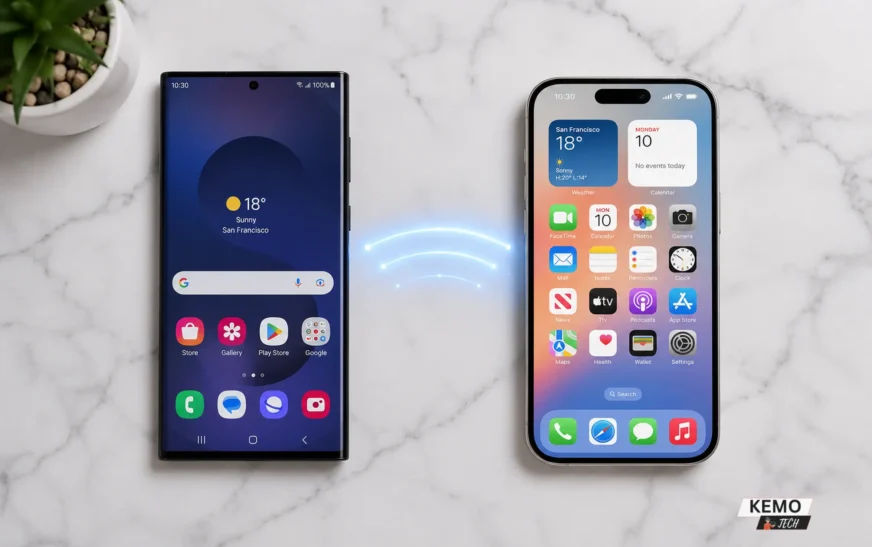
Thinking about how to switch Android to iPhone already set up — or just starting fresh? Either way, your entire digital life is still sitting on your Android right now. Your contacts, five years of photos, WhatsApp chat history, SMS threads — none of it is going to magically appear on your new device. And if you pick the wrong method, some of it might not make it across at all.
The good news is Apple has made this far less painful than it used to be. There’s an official free tool built for exactly this moment and for most people it works well. But there are a few things you need to know before you start, including one decision that can’t be undone.
Here’s exactly how to do it right.
| Method | Best For | Requires iPhone Reset? | Cost |
| Move to iOS | Brand-new iPhone or factory-reset device | ✅ Yes | Free |
| Google Sync | Already using your iPhone | ❌ No | Free |
| USB Cable Transfer | Large photo and video libraries | ✅ Yes | Free |
| MobileTrans | WhatsApp, SMS and advanced migration | ❌ No | Paid |
Tip: If you’re setting up a brand-new iPhone, Apple’s Move to iOS app remains the easiest and most complete option. If you’ve already finished setup, don’t worry, there are still reliable ways to transfer most of your data.
If your new iPhone uses eSIM instead of a physical SIM card, check with your mobile carrier before starting the transfer. Activating your eSIM in advance can make the migration process smoother and help avoid interruptions during setup.
Tip: Before transferring your data, create a fresh backup of your Android phone using Google Drive or another backup method. While migration tools are generally reliable, having a recent backup provides peace of mind if something doesn’t transfer as expected.
Before You Start
You can save yourself a lot of frustration by spending five minutes on prep before touching either phone.
- Make sure your iPhone is on the setup screen. This is especially important if you’re trying to switch Android to iPhone already set up using Move to iOS. The primary transfer method — Apple’s Move to iOS app — only works during initial iPhone setup. If you’ve already gone past that screen and started using the phone, you’ll need to either factory reset it or use a completely different approach (more on that below). If you’re also planning to transfer your eSIM from your Android, do that after the data transfer is complete, not during.
- Check your iPhone has enough storage. If your Android has 60GB of photos and your new iPhone only has 64GB total, the transfer is going to fail halfway through. Go to Settings > General > iPhone Storage on your iPhone to confirm.
- Charge both phones and keep them plugged in. Large transfers can take an hour or more. The last thing you want is one device dying mid-transfer.
- Stay on Wi-Fi, not mobile data. Move to iOS creates its own temporary Wi-Fi network between the two phones, but your Android needs to disconnect from mobile data first or it can interrupt the process.
Method 1: Move to iOS — the right way to do this (if your iPhone is new)
Apple’s Move to iOS app is the simplest, most complete way to switch from Android to iPhone, and it’s completely free. It transfers your contacts, messages, photos, videos, call history, calendar, web bookmarks, mail accounts, WhatsApp messages and even accessibility settings all wirelessly.
The catch: it only works during the iPhone setup process. Once you’ve gone past the setup screens, this option is gone.
Here’s how to use it
- Turn on your new iPhone and follow the iPhone setup steps until you reach the Apps & Data screen.
- Tap Move Data from Android.
- On your Android phone, open the Google Play Store and download Move to iOS (yes, Apple actually has an app on the Play Store).
- Open the app, tap Continue, and agree to the terms.
- Your iPhone will display a six or ten-digit code. Enter it into the Move to iOS app on your Android.
- The iPhone will create a temporary private Wi-Fi network. When prompted, connect your Android to it.
- Select which data you want to transfer — you can pick and choose between contacts, messages, photos, Google Account, and more.
- Tap Continue and then leave both phones alone.
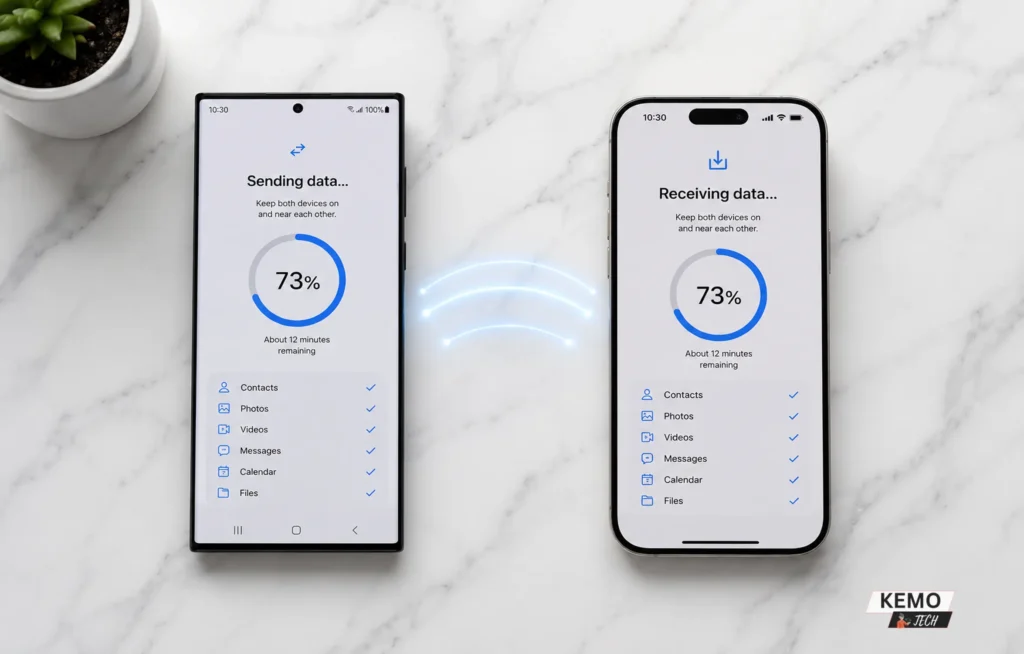
That last point matters. Even if your Android says the transfer is complete, don’t touch either device until the progress bar on your iPhone finishes loading. Moving a large photo library can take a while.
What actually transfers
Contacts, SMS messages, message history, photos and videos, photo albums, call history, calendar entries, web bookmarks, mail accounts, WhatsApp messages and media, Voice Memos, files and folders, and some accessibility and display settings.
What doesn’t
Your Android apps won’t come across — Move to iOS will suggest App Store equivalents, but you’ll need to download them yourself. Start by downloading it from the Google Play Store if you haven’t already. Paid apps bought on Google Play need to be repurchased on the App Store, since licences don’t transfer between platforms. The same goes for downloaded music that isn’t on a streaming service and game progress not backed up to a cloud account. It’s worth scrolling through your Android app list before you start so nothing catches you off guard — most major apps are on iOS, but a few Android-only ones won’t be.
Method 2: Switch Android to iPhone Already Set Up — Use Google’s Services Instead
If you’ve already finished setting up your iPhone and want to switch Android to iPhone already set up without resetting — don’t panic. You can still get most of your data across manually using the Google apps you already have.
Contacts — This is the easiest one. Go to your iPhone’s Settings, scroll down to Mail, then Accounts, and add your Google account. Toggle on Contacts, and every contact synced to Google on your Android will appear on your iPhone within minutes.
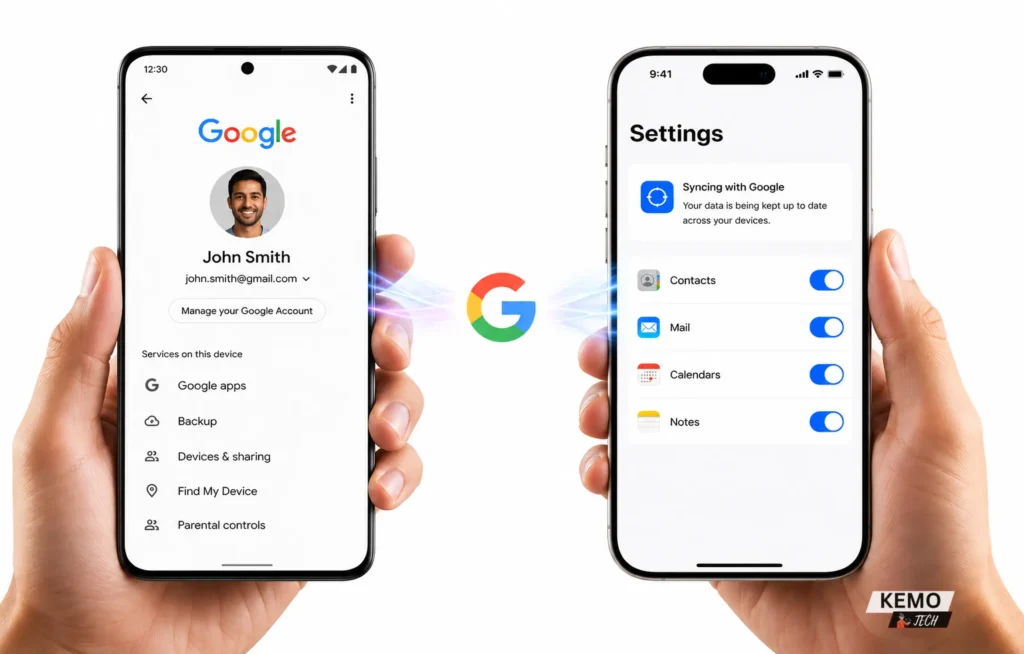
Photos — Download Google Photos on your iPhone and sign in with the same Google account. Your backed-up photos and videos will appear almost instantly. If you prefer Apple’s Photos app, you can move your library later. Many people keep using Google Photos, while others switch fully to Apple’s ecosystem.
Emails and calendar — Again, adding your Google account in iPhone Settings pulls in Gmail, Google Calendar and Google Drive access automatically.
Documents and files — Download the Google Drive app on your iPhone. Everything you’ve stored in Drive is accessible instantly.
The only things this method won’t easily transfer are your SMS text messages. Those are tied to your Android and don’t sync through Google’s cloud services. If your text history matters to you, a third-party app like SMS Backup & Restore can export it, but it’s a more involved process.
Method 3: USB cable transfer (faster for big photo libraries)
If you have thousands of photos or a large video collection, this is the method worth using. A wired connection is significantly faster than Wi-Fi — a 20GB photo library that takes 45 minutes wirelessly can complete in under 10 minutes via cable, and it’s far more reliable if your home Wi-Fi signal isn’t great.
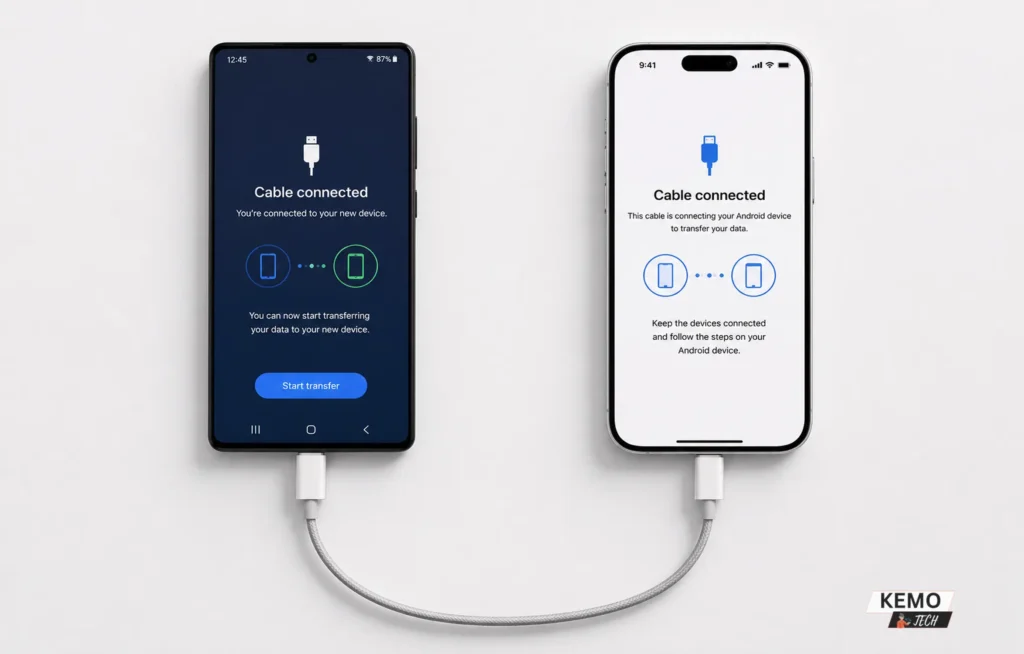
The cable you need depends on your iPhone model. For iPhone 15 and later (including the iPhone 16 range), grab a USB-C to USB-C cable — the same one your Android almost certainly came with. For iPhone 14 or older, you’ll need a USB-C to Lightning cable, which is less common, so it’s worth checking what you have before you start. The process itself is identical to Method 1 — use Move to iOS during iPhone setup, but when prompted, plug the two phones together instead of connecting over Wi-Fi. Keep both devices plugged into power as well, since the occupied USB port means your Android can’t charge during the transfer.
Method 4: Third-party tools for WhatsApp and everything else
Move to iOS does transfer WhatsApp messages in recent versions, and for most people it works fine. But if your chat history goes back years and you can’t afford to lose any of it, a dedicated desktop tool gives you more control and is less likely to leave gaps.
Apps like MobileTrans (Windows/Mac) connect both phones to your computer via USB and move WhatsApp chats, call logs, SMS history and more directly between devices — no cloud required, no iPhone reset needed. It’s a paid app, but if your job or personal life runs through WhatsApp, it’s worth the cost. Just make sure WhatsApp is updated to the latest version on your Android before you start — that’s the most common reason transfers hit problems.
Your First 10 Minutes After You Switch Android to iPhone Already Set Up
The data transfer is just the first step. Here’s what to do once it’s done.
Sign into your Apple ID — Without this, you can’t download apps, access iCloud, or use most Apple services. If you don’t have one, creating an account takes about two minutes.
Set up Face ID or Touch ID — Go to Settings > Face ID & Passcode (or Touch ID & Passcode on older models) and add your face or fingerprint. Do this before you do anything else.
Re-download your apps — Visit the App Store and search for the apps you used on Android. Most major apps — WhatsApp, Instagram, Spotify, Google Maps, YouTube — are identical on iOS.Once you’re settled in, try editing videos on your iPhone too — it’s easier than you’d expect.
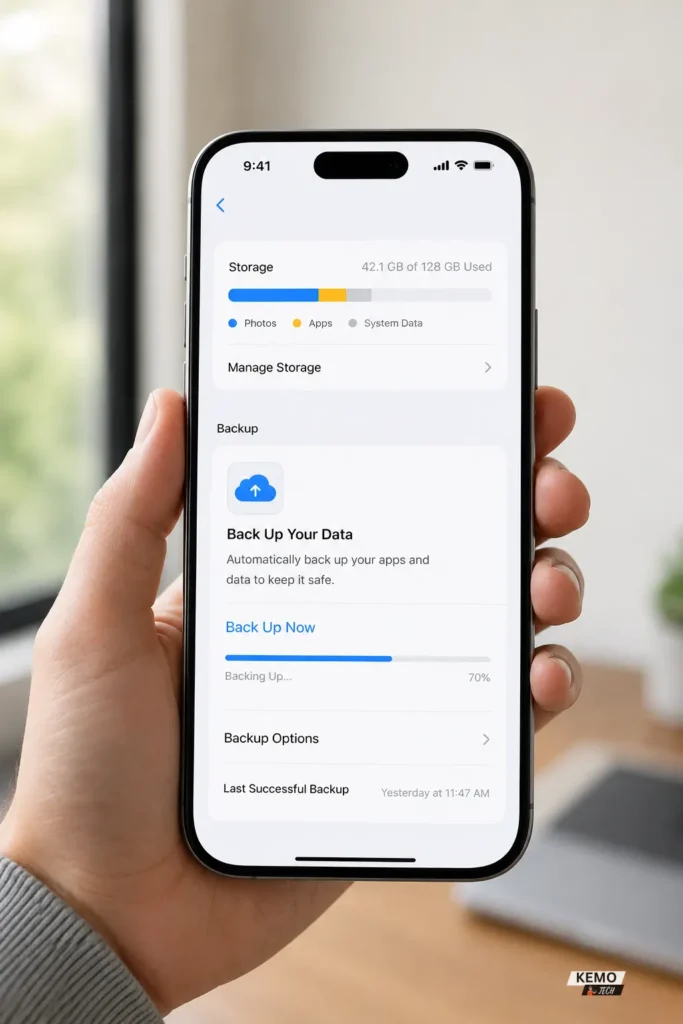
Back up your iPhone — Go to Settings, tap your name, then iCloud and turn on iCloud Backup. Run a manual backup immediately after setup so your data is protected from day one.
Deregister iMessage on your old number — If your old Android SIM is in your new iPhone, this isn’t an issue. But if you’re keeping the Android active on the same number, SMS messages from other iPhone users might get swallowed by iMessage and never arrive on your Android. Before that happens, take five minutes to set up iMessage properly on your new iPhone and deregister your number from the old device — it saves a lot of confusion later.
Common Problems When You Switch Android to iPhone Already Set Up
Whether you’re switching Android to iPhone already set up or starting fresh, these are the most common problems readers hit.
The transfer keeps failing or disconnecting — Turn off mobile data on your Android before starting again. This is the most common cause of failed transfers and it’s easy to miss.
My iPhone looks full but the transfer didn’t finish — This happens when your Android content exceeds the available iPhone storage. Erase your iPhone, go back to the setup screen, and check your storage before starting over.
WhatsApp messages didn’t come across — Make sure WhatsApp is up to date on your Android before transferring. The cross-platform WhatsApp transfer requires a recent version of the app on both devices.
Some contacts are duplicates or missing — If you had contacts stored locally on your Android (not in your Google account), those may not have transferred cleanly. The Contacts app on iPhone has a merge duplicates option under My Card settings.
Switching Phones Doesn’t Mean Starting Over
Our pick? Move to iOS, every time — as long as your iPhone is still on the setup screen. It’s free, it’s built by Apple specifically for this moment, and it moves more data in one go than any other method. The only preparation it really asks of you is checking your iPhone storage and turning off mobile data on your Android before you start.
Already switched Android to iPhone with it already trying to switch Android to iPhone already set up? The Google account sync gets your contacts and photos across in minutes, even if it won’t rescue your SMS history. And if WhatsApp is the main thing you’re worried about, sort that out with MobileTrans before you do anything else.
Either way, you’ll be up and running on iOS in under an hour. Just don’t erase your Android until you’ve double-checked everything made it across.